PSI Practice Digital Assessments: A Guide to Gaining Confidence
To become more comfortable with the Phonics Screener for Intervention™ (PSI) digital assessment, complete as many practice assessments as needed.
You can access practice assessments from any student's Student Details page—these won't be recorded under that student's name and simply provides access to the practice environment.
To complete a practice assessment, keep this tab open and open a new tab to log in to the One95™ platform via your SSO or at https://one95.app/login.
Follow the walkthrough steps below as you progress through each step on the One95 platform.
Navigating to the Digital Practice Assessment in One95
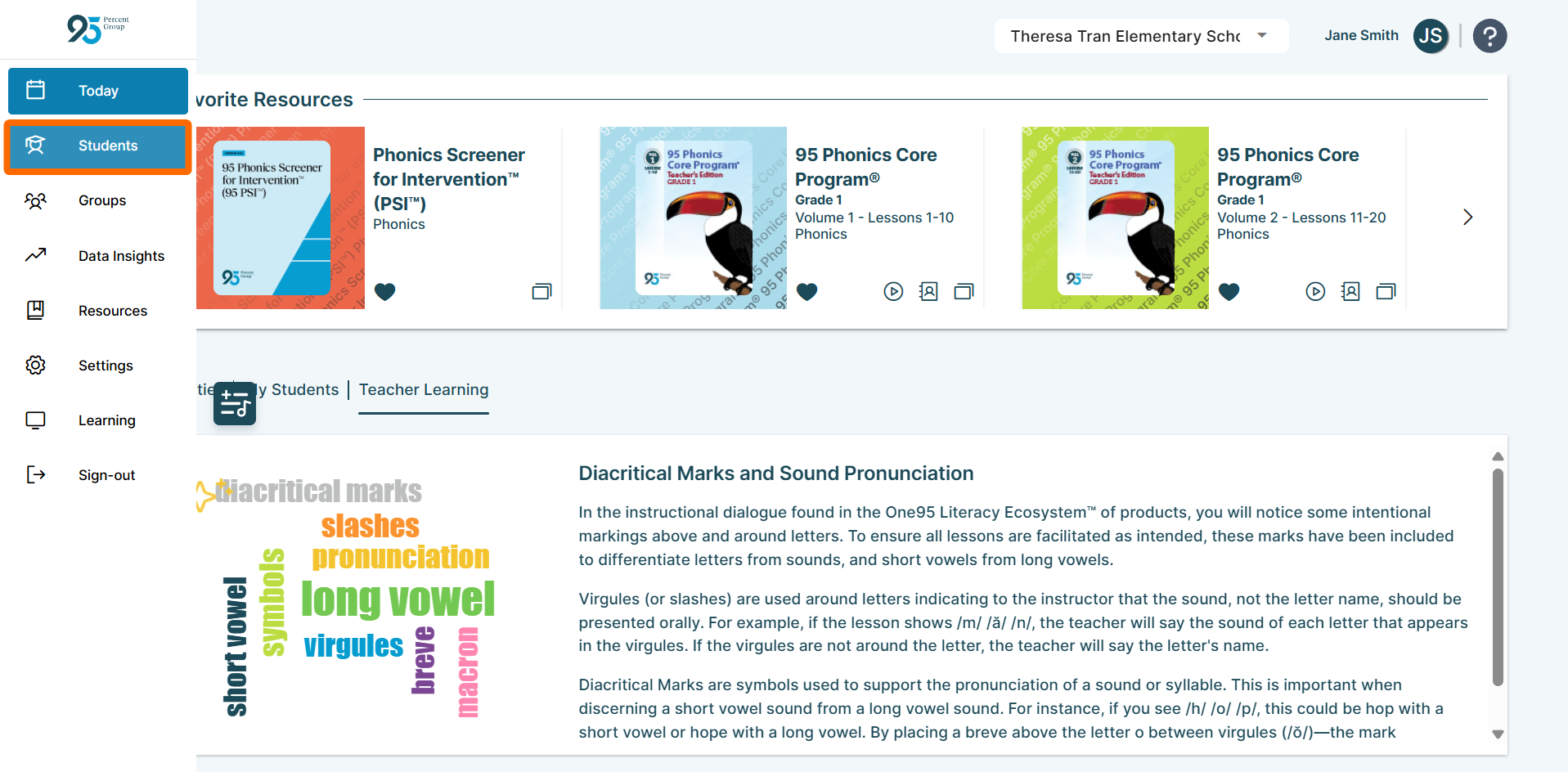
- Once logged into the One95 platform, click the Students page on the left-hand navigation panel.
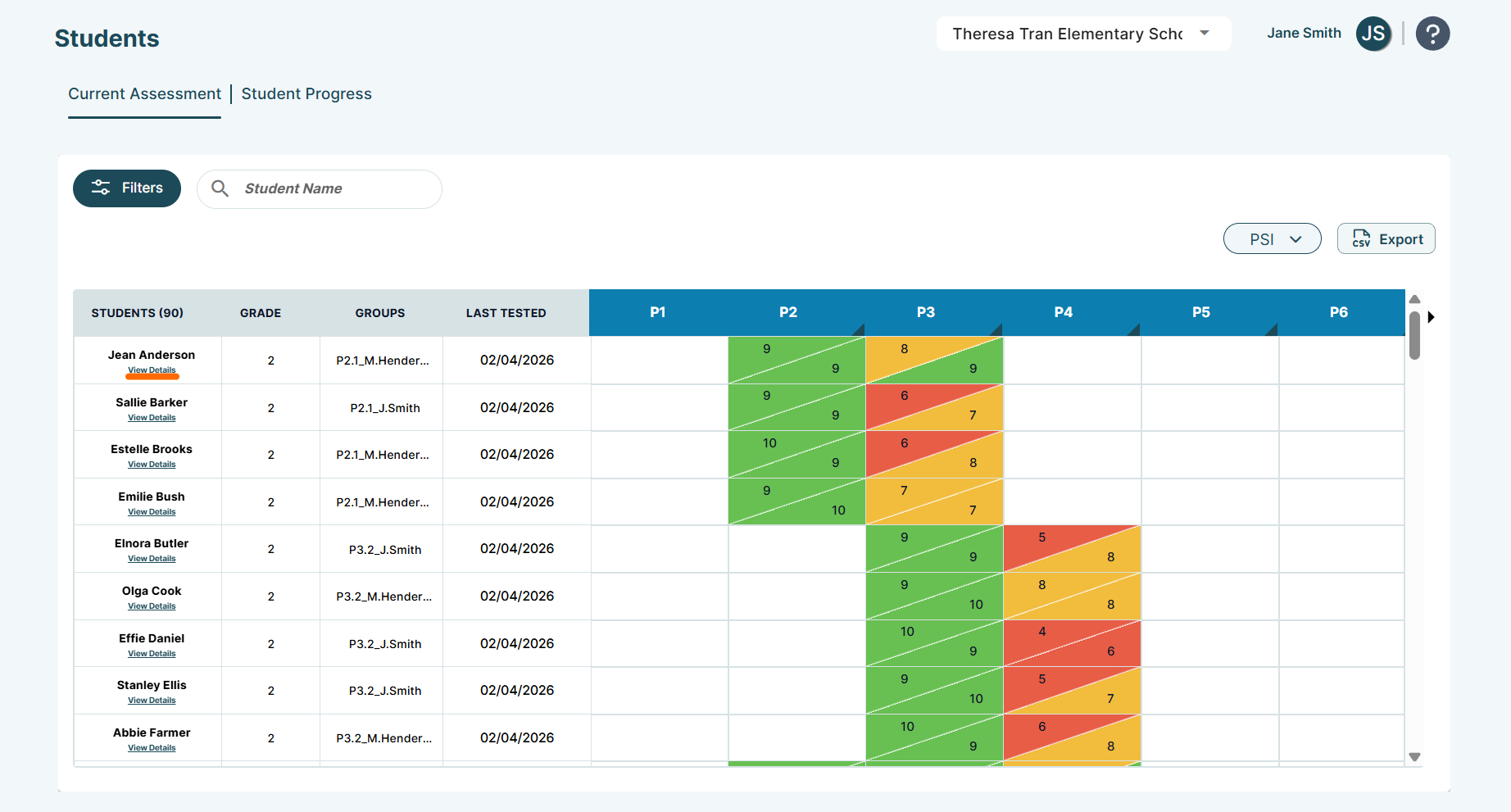
- On the Students page, select View Details for any student you are associated with in the STUDENTS column.
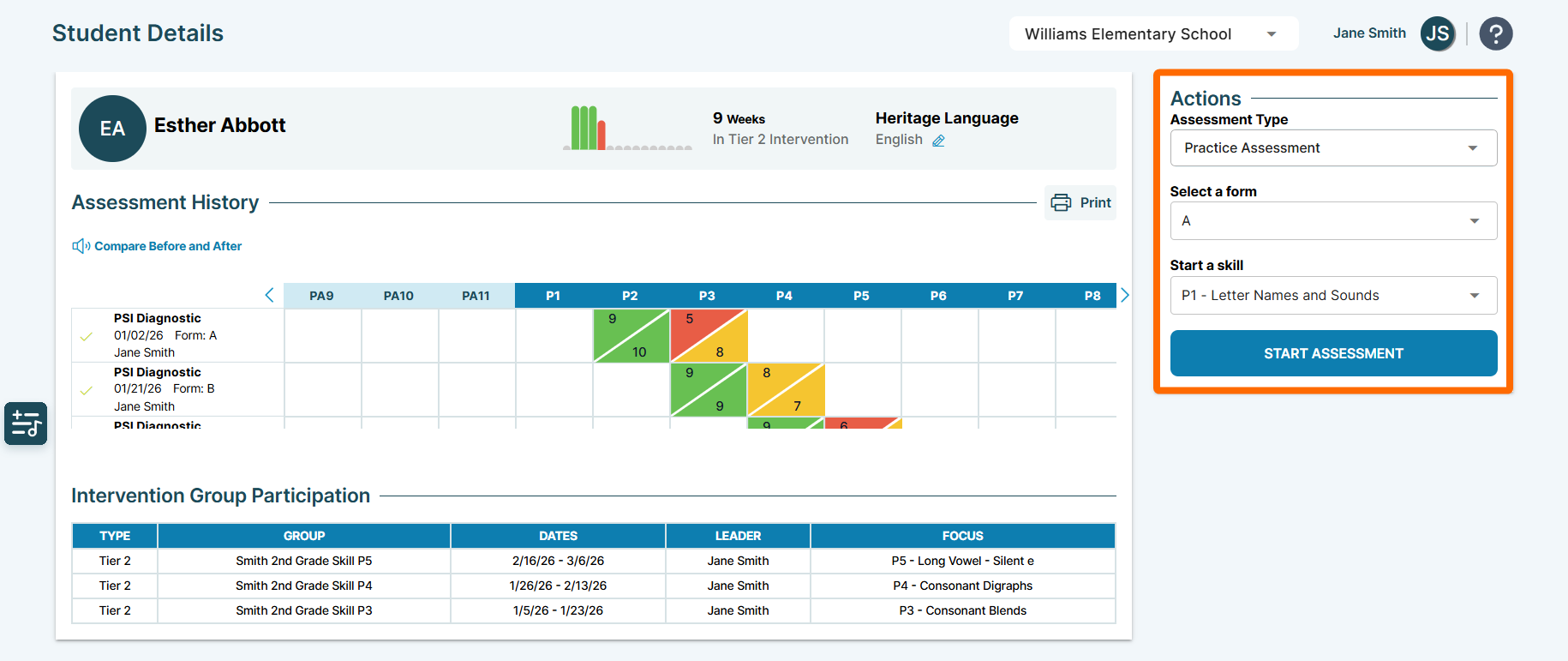
- Complete the Actions panel by selecting Practice Assessment from the Assessment Type dropdown, any “form”, and your preferred starting skill (P1-P15). Then select START ASSESSMENT.
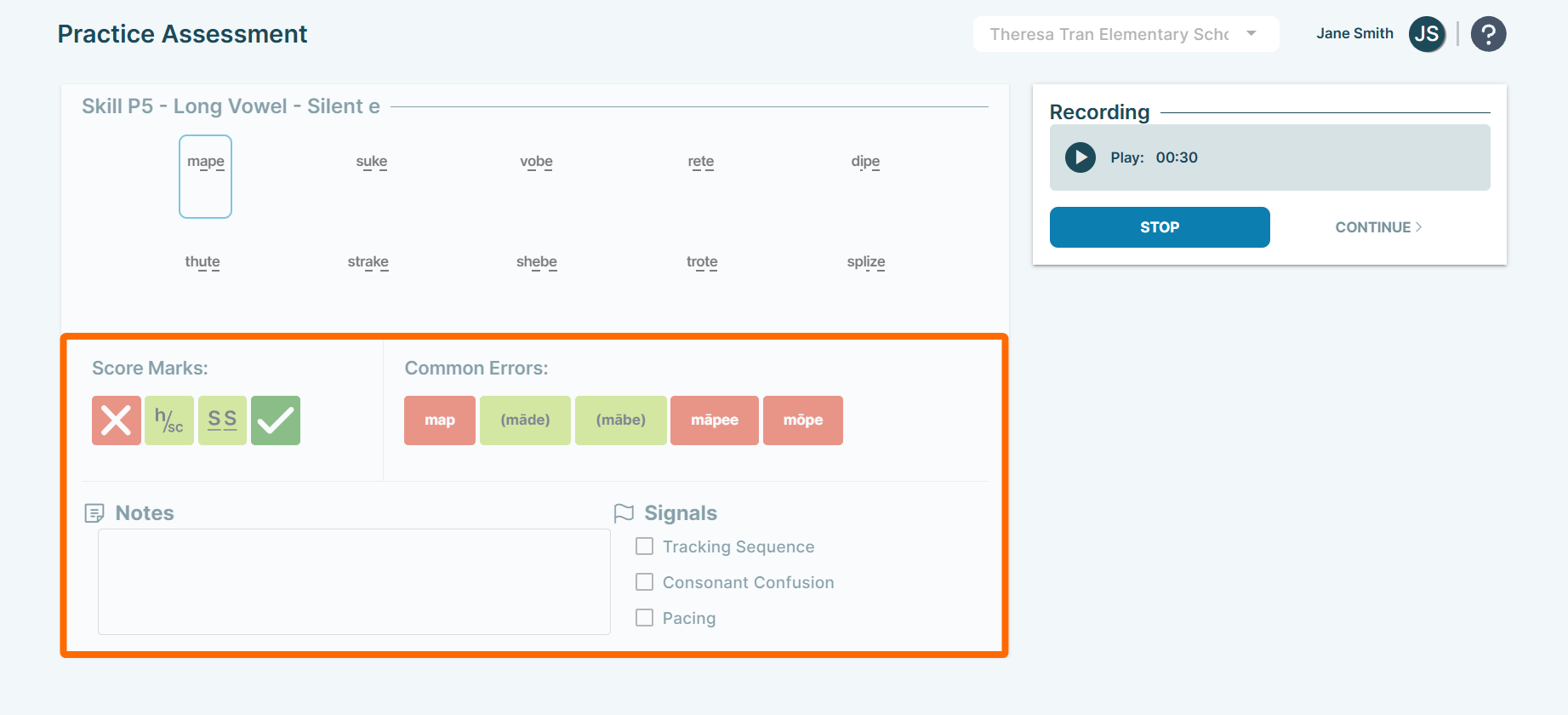
Before Pressing Play, Review Your Scoring Tools and Assessment Best Practices:
It’s recommended that you start with basic red X and green check marks, then gradually incorporate other tools as you become comfortable with the scoring process.
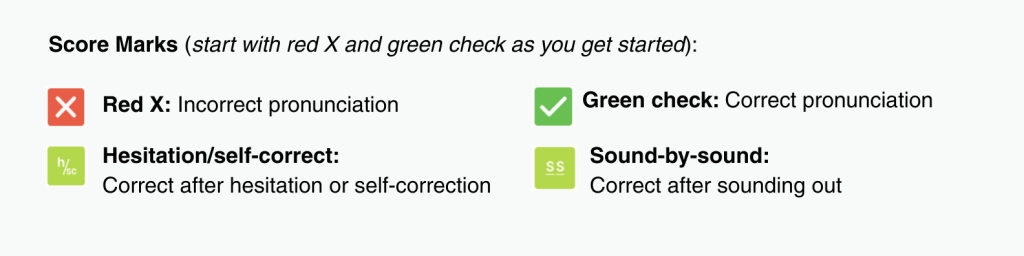
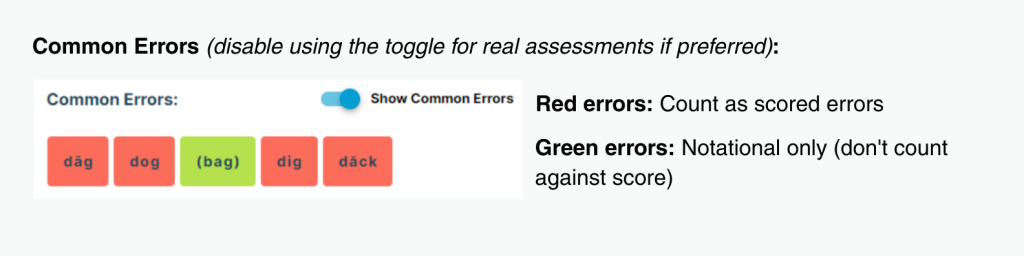
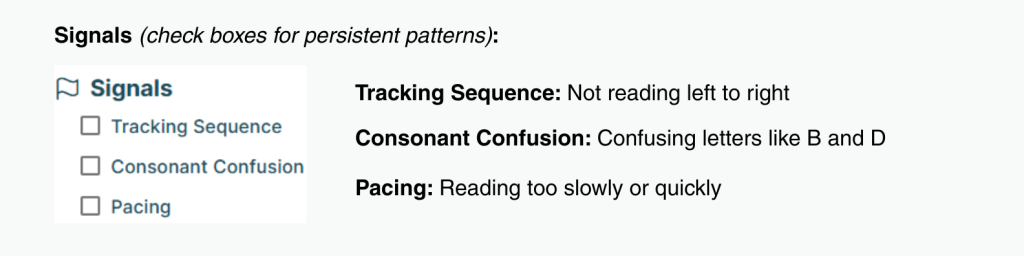
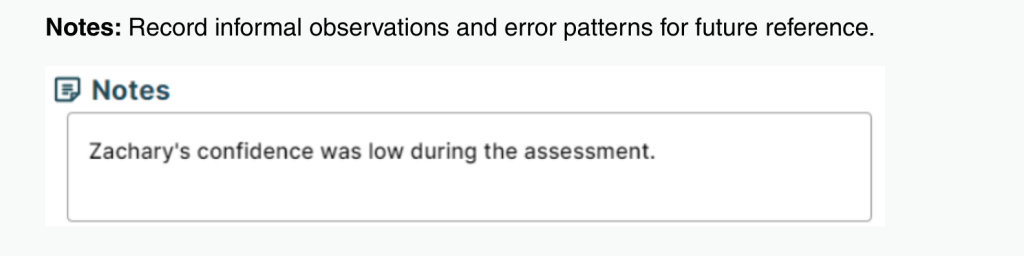
>>Review Assessment Starting, Scoring, & Stopping Guidance as needed.
Let’s Practice!
Keep in mind that as you start using the digital assessment tool, you should initially concentrate on becoming comfortable with the red X and green check marks.
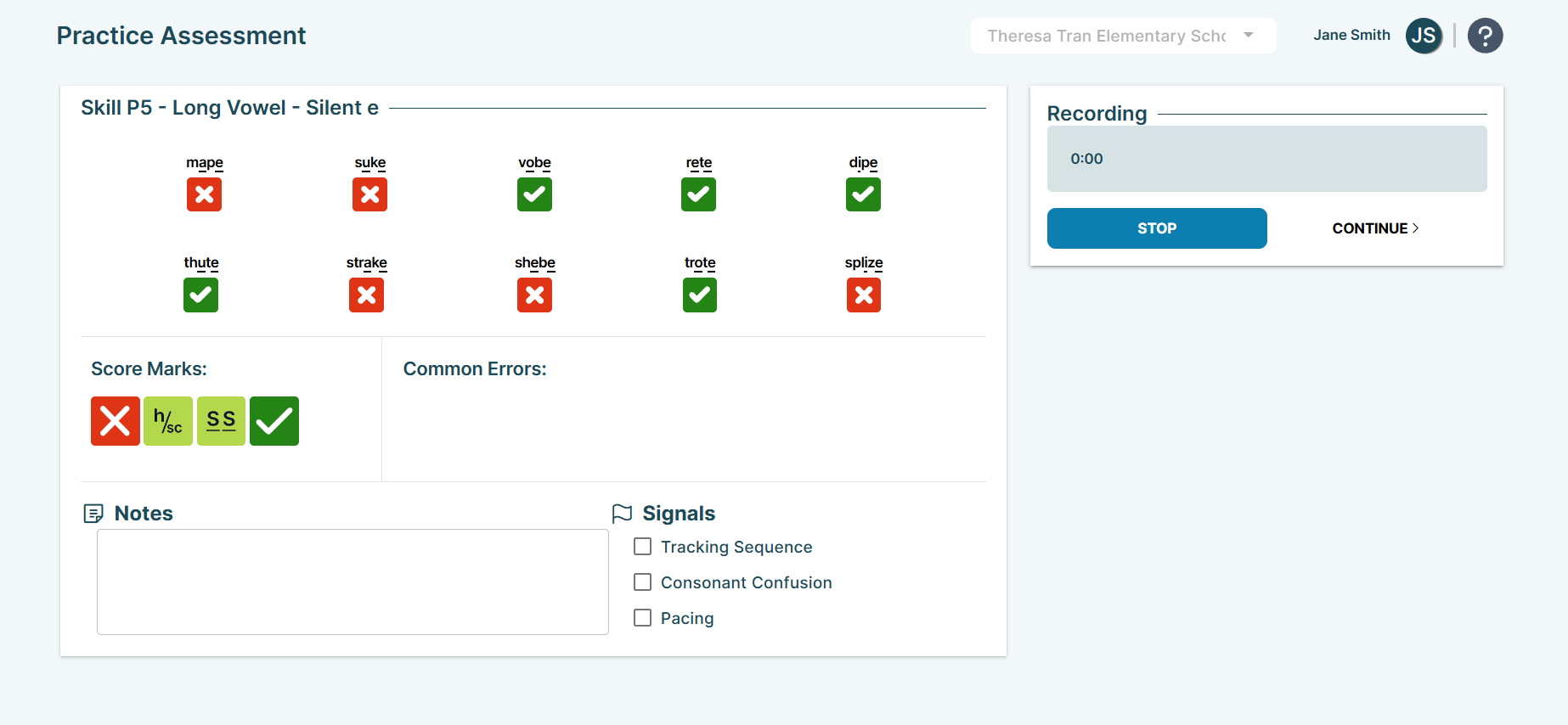
- Press Play to begin scoring the recording.
Stop the Practice Assessment
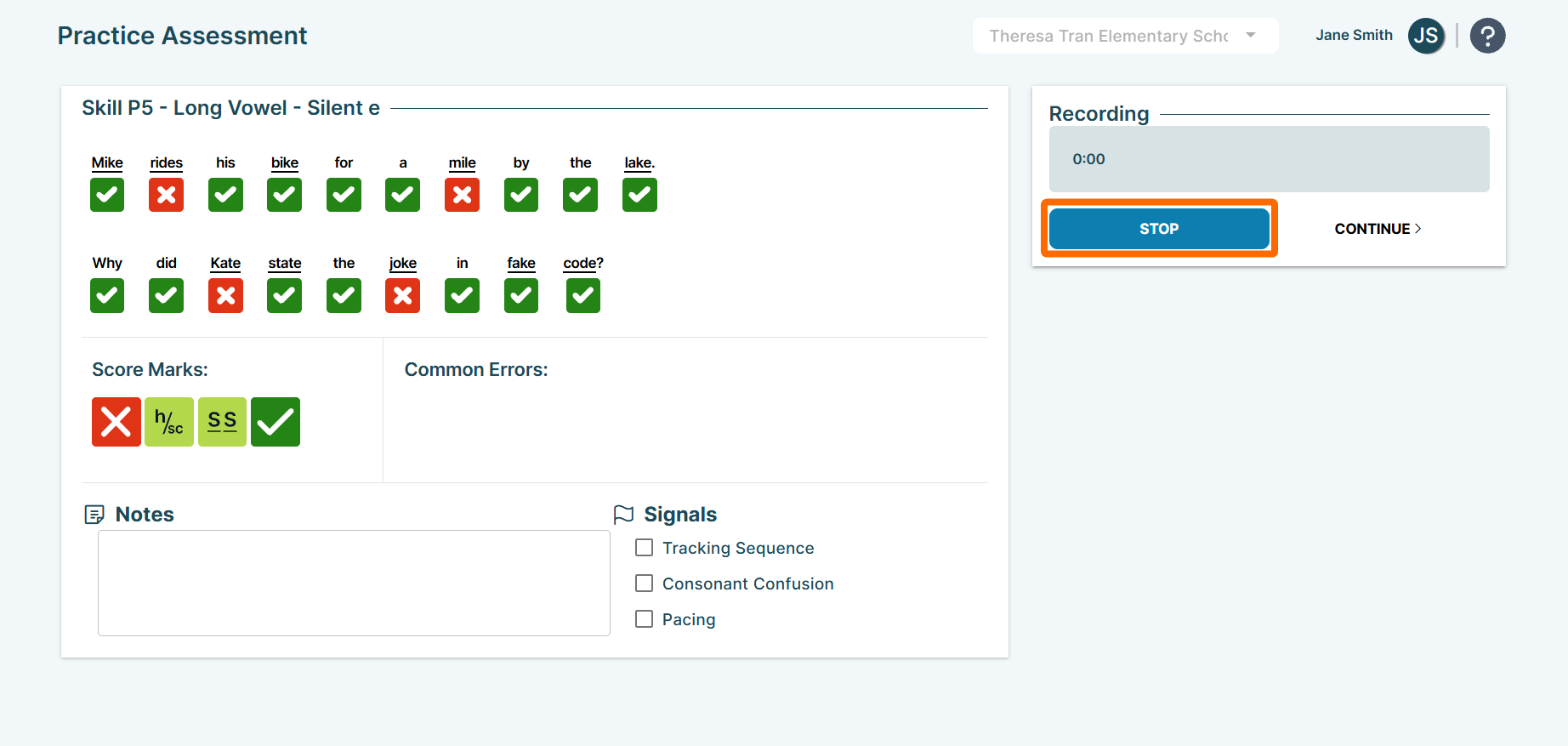
As you listen to the recording, you’ll want to stop the assessment when the practice recording falls below 90% proficiency. If a student shows proficiency with pseudowords but not with sentences, continue the assessment until they fall below 90% in pseudowords.
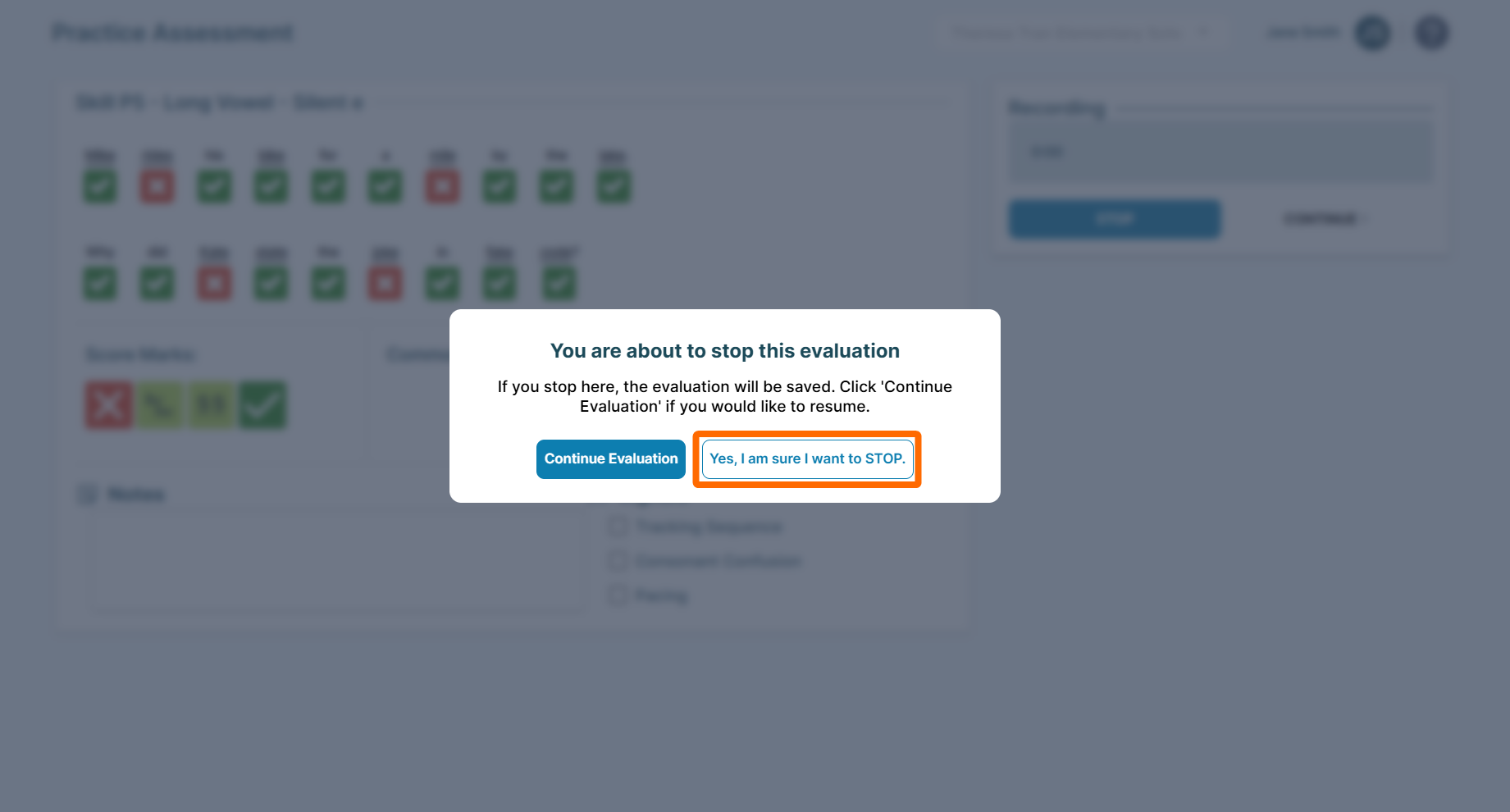
- When your scoring drops below 90% proficient, click STOP. You'll be prompted to either continue or stop the assessment. Once you confirm stopping, you'll return to the Today page.
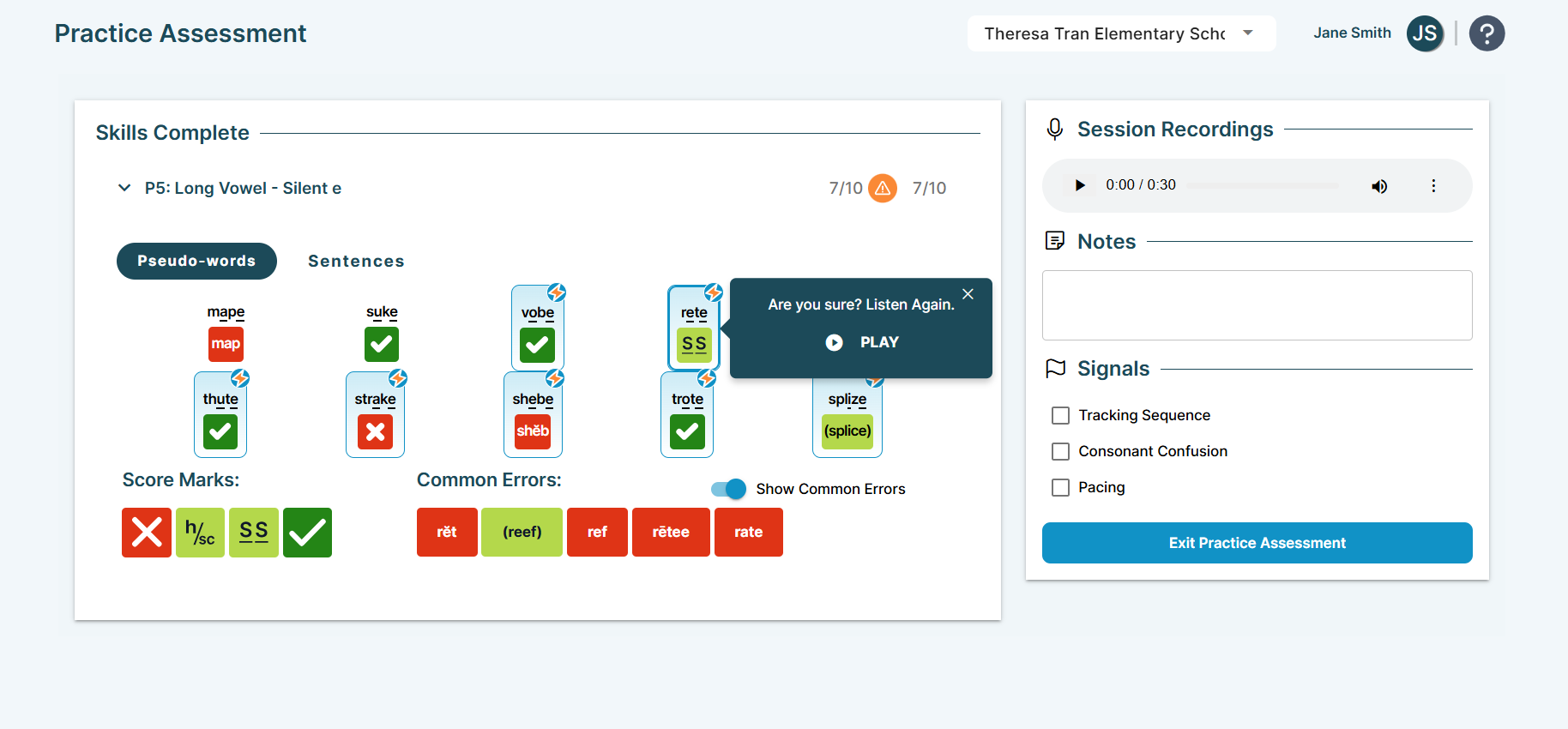
- After stopping the assessment, review any flagged scores. Look for lightning bolt icons that indicate errors and listen to the isolated sounds to understand how and why the scores were marked as incorrect.
Practice Makes Perfect!
Congratulations on completing your first digital practice assessment using 95 Literacy Intervention System™ (95 LIS™)! You can take as many practice assessments as needed before evaluating actual students.
As you become more comfortable with the red X and green check marks, practice assessments are an excellent opportunity to start exploring the other scoring marks, allowing you to enhance your assessment skills over time.
Ready To Deliver Digital Assessments to Your Students?
>>Administer Assessments Digitally: Get step-by-step instructions for assessing your students digitally.
95 Percent Group Support is here to help! Contact us via the knowledge base support form.
To learn more about submitting tickets, reference our article on One95 Support.
Was this article helpful?
That’s Great!
Thank you for your feedback
Sorry! We couldn't be helpful
Thank you for your feedback
Feedback sent
We appreciate your effort and will try to fix the article